AppImage is one of the easiest ways to run Linux apps because it’s typically a single, self-contained file rather than a traditional install package.
In this guide, you’ll learn how to run AppImage files on Linux safely and cleanly: how to organize them, make them executable, launch them, and optionally add a shortcut with icon so the app shows up in your applications menu.
You can follow this guide regardless of the distribution or desktop environment you are using!
What you need
- A downloaded
.AppImagefile (from the app’s official site) - A file manager (Dolphin, Files/Nautilus, etc.) and/or a terminal
Step 1: Put your AppImage somewhere organized
Yes, you can run an AppImage straight from your Downloads folder. But if you download a few of these over time, they get messy fast.
A simple structure I like is:
~/bin/for AppImages (and other portable apps)- One folder per app inside
~/bin/(helps keep icons, config files, and updates tidy)
Example:
mkdir -p ~/bin/<app-name>
Then move your AppImage into that folder using your file manager (drag and drop) or the terminal:
mv ~/Downloads/<app-name>.AppImage ~/bin/<app-name>/
Why one folder per app? Some portable apps want read/write access to their own folder (for example, to download an update). Keeping each AppImage in its own folder avoids weird permission issues and keeps everything clean.
What about multi-user systems?
If multiple users need the same AppImage, putting it in one users home folder might not be ideal. In that case, storing it under /opt/<app-name>/ is common, but you must set permissions properly so users can run (and potentially update) it.
Step 2: Make the AppImage executable (required)
Most downloads are not executable by default (this is normal on Linux). To run an AppImage, you must mark it as executable first.
⚠️ This is the critical step. AppImage software will not run without doing this step.
Option A: Do it in your file manager (GUI)
- Right-click the AppImage
- Open Properties
- Go to Permissions
- Enable: Allow executing file as program (or your file manager’s equivalent)

Option B: Do it in the terminal (works everywhere)
Change into the folder where the AppImage lives, then run chmod:
cd ~/bin/<app-name>
chmod +x <app-name>.AppImage
Step 3: Run the AppImage
Now you can run your AppImage file in either of these ways:
- Double-click the file in your file manager, or
- Run it from the terminal:
./<app-name>.AppImage
Step 4 (optional): Add the AppImage application to your application menu
These steps will vary a bit depending on your desktop environment, but you should be able to find equivalent settings.
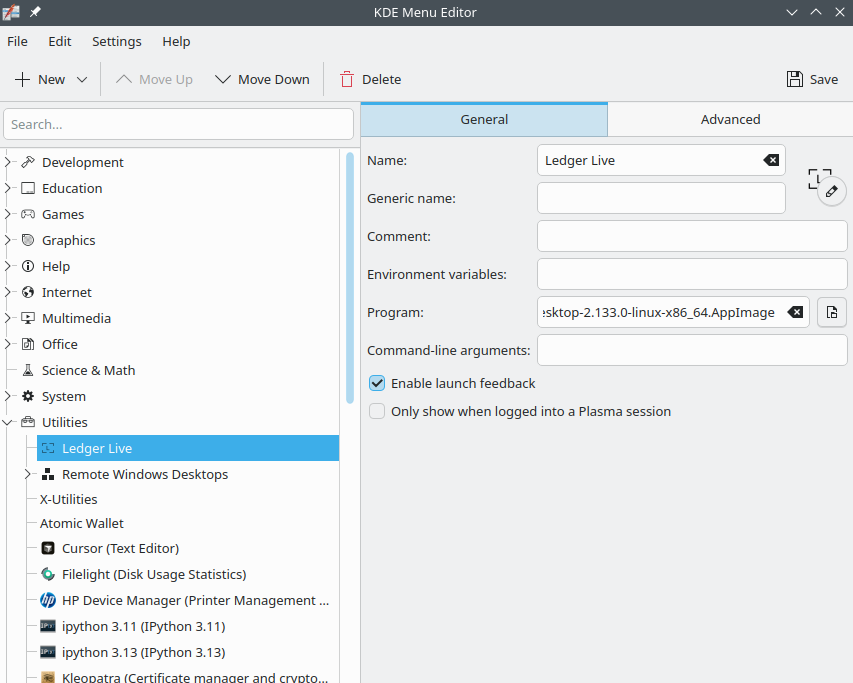
If you’re on KDE Plasma, you can follow these instructions:
- Right-click your application launcher (start menu)
- Click Edit Applications…
- Choose a category (like Utilities)
- Click New Item
- Set the Program to the full path of your AppImage
- Pick an icon (optional but recommended)
- Save
Tip: Download a PNG icon (transparent background looks best) and store it in the same folder as your AppImage so everything stays together.
Step 5 (optional): Use AppImageLauncher to automate menu integration
If you prefer a more automatic approach, AppImageLauncher can integrate AppImages into your menu, move them into a central location, and even provide update/remove entry functionality through your launcher.
It’s not supported on every distro, but if it works on yours, it can save time.
Troubleshooting tips
Nothing happens when you try to run AppImage
Run it from a terminal to see error output:
cd ~/bin/<app-name>
./<app-name>.AppImage
Want to inspect whats inside an AppImage?
You can mount AppImages read-only using:
./<app-name>.AppImage --appimage-mount
Remarks
- AppImages are not installed like traditional packages on Linux: you manage them by keeping the file, updating it (if the app supports it), and deleting it when done.
- A clean folder layout makes it easier to back up, move, or remove apps later.
- If you want the most “native” feel, menu integration is the final piece.
- For those less familiar with Linux,
~is a shorthand placeholder for/home/<user>.
FAQ
Do I have to install anything to run AppImage?
No. You usually just download it, mark it executable, and run it.
Why is my AppImage not executable after downloading?
Because Linux downloads typically remove the executable bit for safety. Therefore, you have to add it back with the GUI permission checkbox or chmod +x.
How do I uninstall an AppImage?
Simply delete the AppImage file (and any shortcuts you created).


Leave a Reply