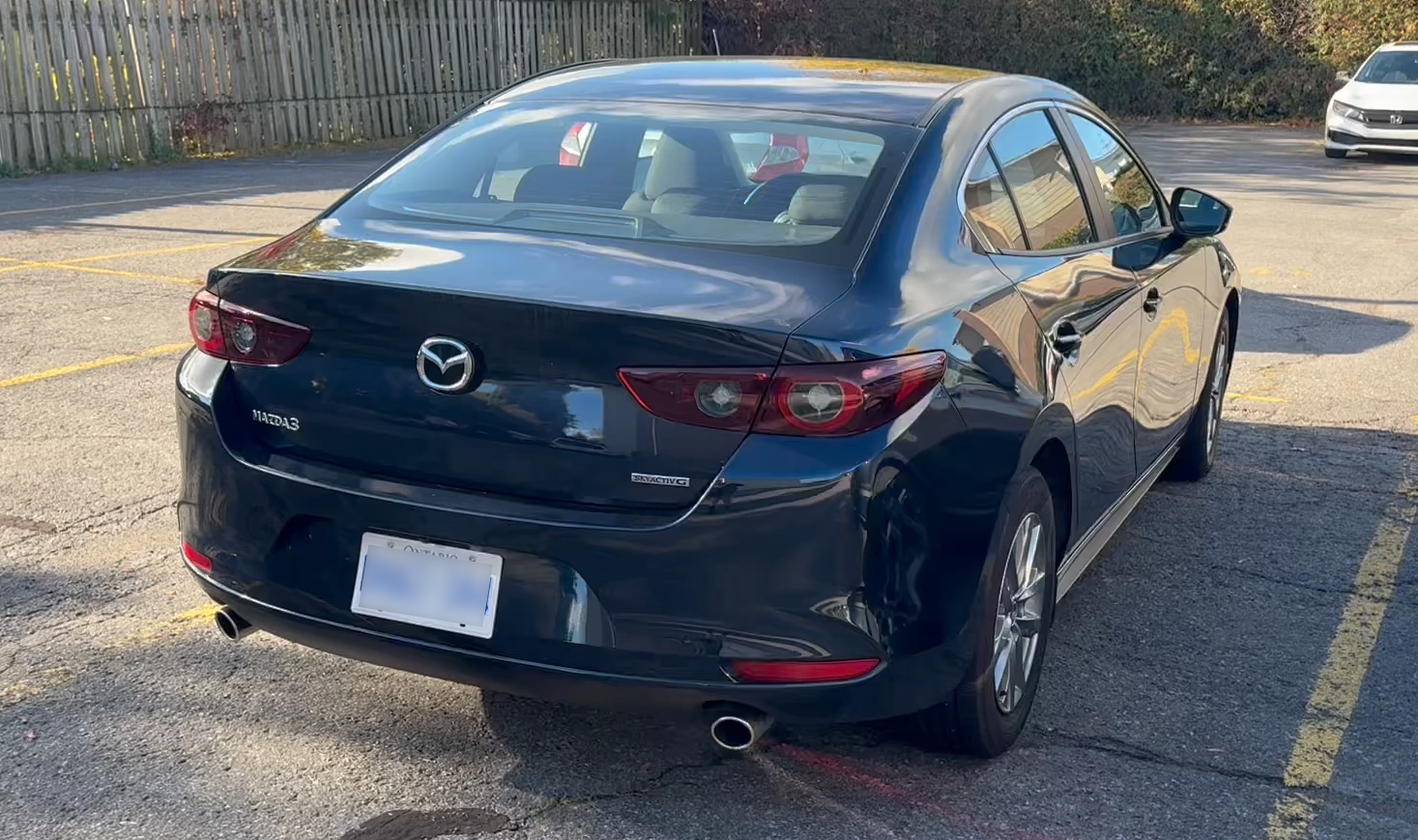
If your car supports remote start and has a compatible Home Assistant integration, you can start your car with Alexa without relying on a manufacturer-specific Alexa skill or installing additional hardware.
I’ve configured this for my 2025 Mazda 3 using Home Assistant, with two simple voice commands:
- “Alexa, start the car.”
- “Alexa, stop the car.”
What’s particularly nice about this setup is that it doesn’t require any Home Assistant automations, scripts or Alexa routines in my case. We’re simply exposing the existing controls from the car’s integration to Alexa and assigning them more natural names.
Although I’ll be using my Mazda as an example, you can follow a similar process for any car with a Home Assistant integration that provides remote start functionality.
What You Need to Start Your Car with Alexa
Before getting started, you’ll need:
- A running Home Assistant instance.
- Alexa connected to Home Assistant through a Smart Home skill.
- A Home Assistant integration for your vehicle that supports remote start.
- An active connected services subscription, if your vehicle requires one.
If you’re not running Home Assistant yet, I’ve written a separate guide on installing Home Assistant on Proxmox.
I use the manually configured Alexa Smart Home skill, which doesn’t require a Home Assistant Cloud subscription. For this tutorial, I’ll assume Alexa can already control devices in your Home Assistant instance.
1. Find a Home Assistant Integration for Your Car
The first step is to find an integration that supports your vehicle.
I’d recommend searching the official Home Assistant integrations directory, HACS and GitHub for your car’s manufacturer or connected services platform.
Keep in mind that some vehicle integrations only provide information such as fuel levels, battery charge, mileage and door status. To start your car with Alexa, the integration must also support sending remote commands to your vehicle.
My Setup: Mazda Connected Services
For my 2025 Mazda 3, this is possible thanks to Mazda Connected Services, which allows me to remotely start and stop my car, lock and unlock the doors, and check vehicle information through the MyMazda app.
To bring this functionality into Home Assistant, I use Mazda Connected Services ng, a community-maintained integration based on the Mazda integration that previously shipped with Home Assistant.
Essentially, Home Assistant uses the same connected services that make remote start possible through the MyMazda app. If your car manufacturer offers a similar service and there’s a compatible Home Assistant integration, you should be able to replicate this setup without installing any additional hardware.
You can install the integration by adding the GitHub repository as a custom repository in HACS, or by manually installing it according to the project’s documentation.
Once installed, restart Home Assistant, navigate to Settings > Devices & Services, and add the Mazda integration.
The authentication process is a little unusual because Mazda uses a sign-in callback intended for its mobile app. The integration’s documentation provides two methods for completing authentication:
- Using the OAuth Assist for HA browser extension with the Mazda provider profile.
- Manually copying the authentication callback from your browser’s developer console.
Once you’ve connected your account, Home Assistant should populate the entities supported by your vehicle.
In my case, the two entities we’re interested in are:
| Entity | Entity ID |
|---|---|
| Start engine | button.2025_m3g_start_engine |
| Stop engine | button.2025_m3g_stop_engine |
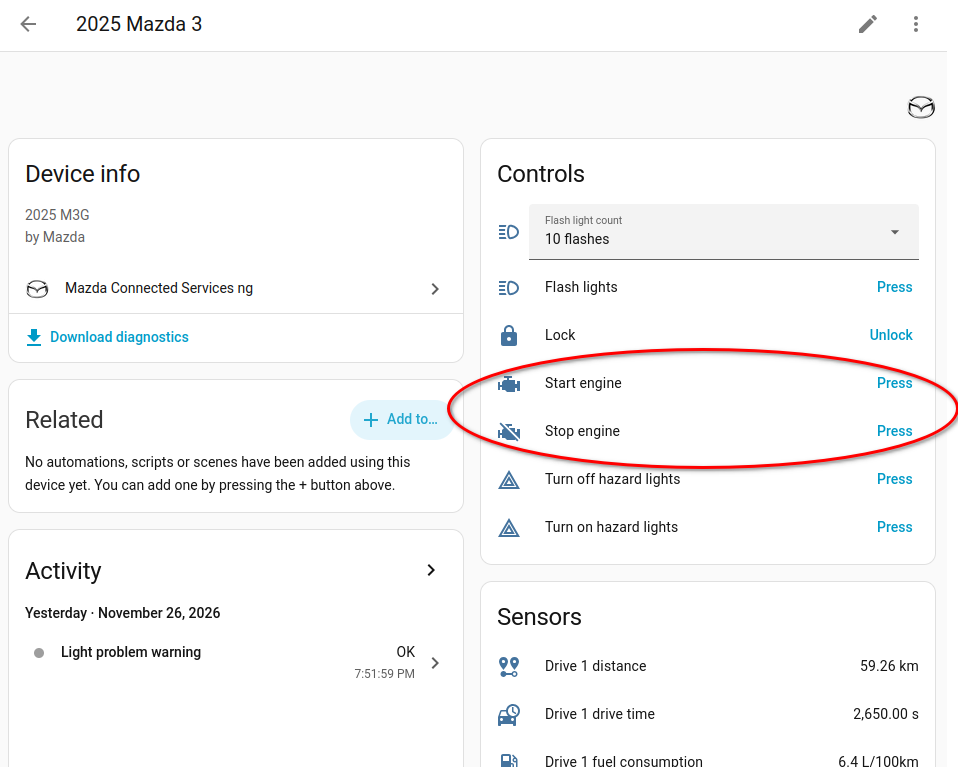
If you have a different vehicle, look for the equivalent controls in your integration.
2. Expose Your Car’s Controls to Alexa
Next, make sure Alexa has access to your vehicle’s remote start and stop entities.
If you’re managing entity exposure through the Home Assistant interface, navigate to Settings > Voice assistants > Expose and enable Alexa for the appropriate entities.
If you’re using a manually configured Alexa Smart Home skill with a non-empty YAML entity filter, that filter determines which entities Alexa can access. Make sure your engine controls are included according to your filter rules.
In my setup, I use an exclusion-only filter that doesn’t exclude these buttons, so I didn’t need to modify my YAML configuration.
Home Assistant exposes button entities to Alexa as scenes, allowing you to activate them directly by saying their names.
If your integration provides remote start through an action rather than a button, you can create a Home Assistant script that executes the action and expose that script to Alexa instead.
3. Configure Voice Aliases to Start Your Car with Alexa
Rather than having to say something like “Alexa, activate 2025 Mazda 3 start engine,” we can assign a much simpler voice alias.
In Home Assistant:
- Navigate to Settings > Devices & Services > Entities.
- Find your vehicle’s Start engine entity.
- Open its settings and select Voice assistants.
- Add an alias called
start the car. - Drag the new alias to the top of the list, above the default name.
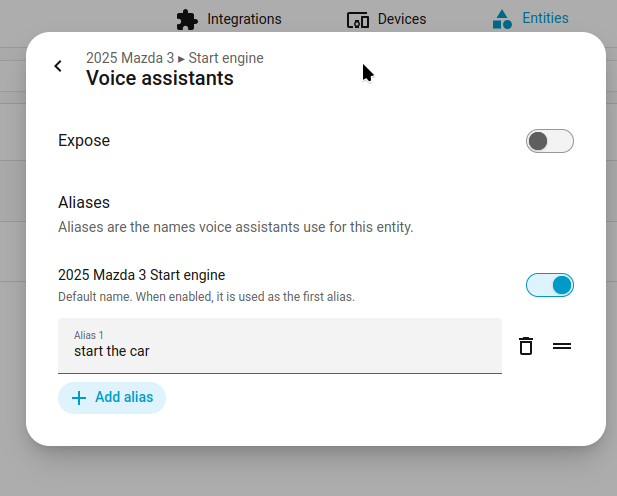
Repeat the same process for the Stop engine entity, using stop the car as its alias.
The order of the aliases is particularly important. As explained in the Home Assistant documentation on voice aliases, Alexa only uses the first alias as the entity’s name.
This also means we can keep the original, more descriptive entity names within Home Assistant.
4. Rediscover Devices and Start Your Car with Alexa
Once you’ve configured your aliases, say:
“Alexa, discover devices.”
This allows Alexa to discover the entities with their updated names.
You can then use the following commands:
- “Alexa, start the car.”
- “Alexa, stop the car.”
If Alexa has trouble recognizing either phrase, you can also try the corresponding “turn on” command.
Since the engine controls are separate button entities, stopping the car involves activating the Stop engine button rather than turning off the Start engine button.
Troubleshooting and Limitations
If Alexa doesn’t recognize your command, double-check that the correct alias is first in the list, that your Alexa exposure configuration includes the entity, and that you’ve rediscovered devices.
If Alexa recognizes the command but your car doesn’t start, try activating the entity directly from Home Assistant when it’s safe to do so. This helps determine whether the issue is with Alexa or your vehicle’s integration.
Also, triggering a remote start command doesn’t necessarily confirm that the engine is running. My Mazda integration doesn’t currently provide a dedicated engine-running sensor, so I can’t rely on Home Assistant’s button state to confirm that the engine has started.
Another Mazda-specific limitation is that a MyMazda account can only remain signed in on one device at a time. The integration’s documentation recommends creating a secondary driver account if you want to use Home Assistant and the MyMazda app simultaneously.
Since the Mazda integration relies on unofficial access to Mazda Connected Services, there’s always a possibility that it could stop working. If Mazda updates the MyMazda app or its backend to block third-party access, the integration could break at any time. The same applies to unofficial integrations for other car manufacturers.
Finally, remember that anyone within range of your Alexa device may be able to trigger these commands. My direct button configuration doesn’t implement an additional PIN or confirmation step. Consider restricting voice access or adding a confirmation step if other people can access your Alexa devices.
Never remotely start a combustion engine inside a garage, even with the door open, and always follow your vehicle manufacturer’s safety instructions.
Conclusion
One of my favourite things about Home Assistant is being able to bring together devices and services that weren’t necessarily designed to work together.
Much like my Home Assistant lightning alerts, this is another example of how much you can accomplish through software integrations alone.
Regardless of whether you drive a Mazda or another brand, you can use the same approach to start your car with Alexa as long as your vehicle and its Home Assistant integration support remote start.

Leave a Reply