I run a self-hosted openSUSE RPM repository using my existing Gitea instance. This allows me to install and update third-party software through zypper on both openSUSE Leap and Tumbleweed, without manually downloading RPM files on every machine.
The repository uses Gitea’s built-in package registry to store and sign RPM packages. An hourly systemd job checks upstream for newer releases, publishes them to Gitea, and removes older versions automatically.
Currently, I’m using this setup to distribute Cursor, but it can work with other software distributed as RPM packages as well.
In this guide, I’ll explain how the repository works, how to configure Gitea and zypper, and how I keep the packages up to date.
How the openSUSE RPM Repository Works
Gitea 1.20 and newer includes a built-in RPM package registry that supports the rpm-md repository format used by package managers such as yum, dnf, and zypper.
This means you can host an RPM repository directly from Gitea without running a separate package server or generating repository metadata yourself.
When I upload an RPM, Gitea stores the package in its package registry and automatically regenerates the repository’s repodata.
The general setup is straightforward:
- An automated job checks whether a newer upstream RPM is available.
- If a new build exists, the job downloads the RPM and uploads it to Gitea.
- Gitea signs the package and updates the repository metadata.
- openSUSE clients access the repository using
zypper. - The publisher keeps the two newest versions of each package and deletes older ones.
The important distinction is that I’m not compiling software specifically for openSUSE.
Instead, I’m mirroring upstream RPMs that are already compatible with the distributions I’m using. This is not an openSUSE Build Service project, and it doesn’t involve rebuilding packages from RPM spec files.
One Repository for Leap and Tumbleweed
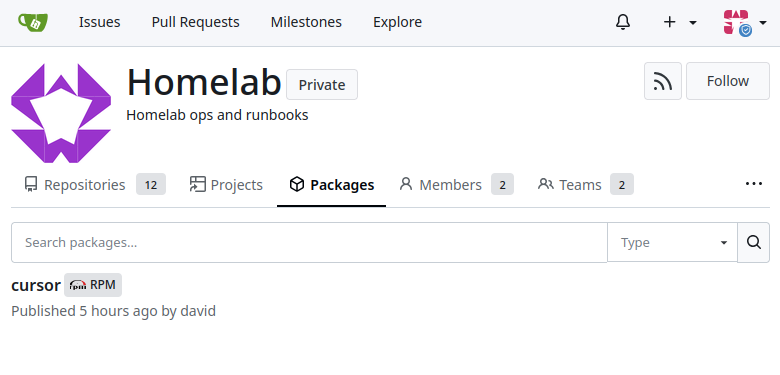
My Gitea RPM registry uses a single group named opensuse.
Both Leap and Tumbleweed access that same group, so I don’t need separate repositories for each distribution.
For this guide, I’ll use the following example configuration:
| Setting | Value |
|---|---|
| Gitea URL | https://git.example.com |
| Package owner | packages |
| Repository group | opensuse |
| Repository type | rpm-md |
| Architecture | x86_64 |
| Package | cursor |
The resulting repository URL is:
https://git.example.com/api/packages/packages/rpm/opensuseNotice that packages appears twice in the URL. The first occurrence belongs to Gitea’s package API path, while the second is the name of the package owner.
All hostnames, usernames, and credentials shown in this guide are placeholders.
Is a Fedora RPM Compatible With openSUSE?
Cursor distributes an RPM intended for RPM-based Linux distributions, including Fedora-compatible systems.
At the time I configured this repository on September 26, 2026, its upstream x86_64 RPM was:
cursor-3.22.7-1790228250.el8.x86_64The file was approximately 290 MB.
Despite the .el8 suffix, this particular RPM works on both openSUSE Leap and Tumbleweed.
Its dependencies consist primarily of shared library sonames, along with ca-certificates and xdg-utils. There are no Fedora-specific package names in its RPM Requires metadata.
Additionally, its highest required glibc symbol is GLIBC_2.28, which is available on openSUSE Leap 15.3 and newer, as well as Tumbleweed.
I’ve used the same RPM successfully on Leap 15.6 and Tumbleweed, including its GTK and NSS dependencies.
Of course, this doesn’t mean every Fedora RPM will work on openSUSE. You still need to inspect the dependencies of any additional packages you mirror.
1. Configure Gitea to Host RPM Packages
First, you’ll need an existing Gitea installation with its package registry enabled.
For RPM publishing, Gitea 1.20 or newer is required. However, you’ll need Gitea 1.23 or newer to use its RPM signing functionality.
You can find more details about the supported endpoints in the official Gitea RPM package registry documentation.
Configure the Reverse Proxy Upload Limit
One important consideration is the upload size.
Since Cursor’s RPM was approximately 290 MB at the time of setup, the reverse proxy in front of Gitea needs to accept request bodies larger than the package.
For example, if you’re using nginx, you can configure:
client_max_body_size 512m;Adjust this value to accommodate the RPMs you intend to publish.
If the proxy rejects the upload with HTTP 413 Request Entity Too Large, the request body limit is probably too low.
You’ll also want enough storage for multiple package versions. Keeping two copies of Cursor requires approximately 600 MB, excluding additional registry overhead.
Create a Package Access Token
The publisher needs a Gitea personal access token with the following permissions:
read:packagewrite:package
This token allows the publishing job to upload packages, inspect existing versions, and delete older ones.
The publishing token should remain on the machine running the synchronization job. It doesn’t need to be distributed to openSUSE clients.
If the Gitea package owner is public, clients can access the RPM repository without authentication.
For private package owners, I’ll cover how to configure a separate read-only token later.
2. Upload and Sign an RPM Package
With Gitea configured, the next step is publishing an RPM.
Gitea’s RPM registry accepts HTTP PUT requests containing the RPM file.
For example:
curl --user USER:TOKEN --upload-file cursor.rpm \
  "https://git.example.com/api/packages/packages/rpm/opensuse/upload?sign=true"
The --upload-file option tells curl to upload the RPM using an HTTP PUT request.
The sign=true query parameter tells Gitea to sign the RPM as part of the publishing process.
This is particularly important for Cursor because its upstream RPM is not signed.
Gitea’s generated repository configuration enables gpgcheck=1, meaning zypper expects a valid package signature. Without signing, installation can fail during package verification.
Enable RPM Signing by Default
Alternatively, you can enable automatic RPM signing globally through Gitea’s app.ini.
Under an uncommented [packages] section, add:
[packages]
DEFAULT_RPM_SIGN_ENABLED = true
With this enabled, Gitea signs RPM uploads by default instead of requiring sign=true on every request.
I use signing so clients can verify packages against the key associated with the Gitea package owner.
Understanding Upload Responses
The RPM upload endpoint returns different HTTP status codes depending on the result.
| Status | Meaning |
|---|---|
201 Created | RPM published successfully |
409 Conflict | That exact package version already exists |
400 Bad Request | The submitted package is invalid |
When Gitea returns 201, it also regenerates the group’s repository metadata.
A 409 isn’t necessarily a problem. In this setup, it simply means the same package version already exists, so there’s nothing to replace.
There is no reason to delete and reupload an identical version.
3. Import the Gitea RPM Signing Key on openSUSE
Before installing packages from the repository, clients need to trust the public key used by Gitea to sign them.
Each Gitea package owner has its own signing key.
For the example owner, the public key URL is:
https://git.example.com/api/packages/packages/rpm/repository.keyHowever, there’s an important detail: Gitea doesn’t serve this key in the ASCII-armored format expected by the usual rpm --import workflow.
Instead, I import the key with GnuPG, export an armored copy, and then import that copy into RPM.
Run the following commands in a root shell, such as one opened with sudo -i:
curl -fsS -o repository.key \
  "https://git.example.com/api/packages/packages/rpm/repository.key"

gpg --batch --import repository.key

gpg --batch --export --armor > /etc/pki/rpm-gpg/gitea-packages-opensuse.asc

rpm --import /etc/pki/rpm-gpg/gitea-packages-opensuse.asc
The result is an armored public key at:
/etc/pki/rpm-gpg/gitea-packages-opensuse.ascI’ll reference this file in the zypper repository configuration.
If you publish RPMs under another Gitea owner, you’ll need to import that owner’s signing key instead.
4. Configure the Repository in zypper
The client configuration is almost identical on openSUSE Leap and Tumbleweed.
Before adding the repository, there’s one setting I recommend applying to avoid problems when downloading large RPMs.
Configure zypper’s Temporary Directory
On some openSUSE installations, /tmp resides on a separate tmpfs filesystem.
When zypper downloads a package into that temporary location and attempts to rename it into /var, the operation can fail if the directories reside on different filesystems.
To avoid this, I use /var/tmp as the temporary directory.
export TMPDIR=/var/tmp
mkdir -p "$TMPDIR"
Run these commands before invoking zypper in the same shell. If you’re using a root shell, keep that shell open for the installation commands.
This avoids the cross-filesystem rename problem without disabling package verification or changing the repository itself.
Option A: Configure a Private Gitea Repository
My Gitea package owner is private, so the openSUSE clients need authentication to download repository metadata and packages.
I don’t put the access token directly into the repository URL.
Instead, I store a separate read-only token in zypper’s credentials directory.
Create the directory and credentials file:
install -d -m 700 /etc/zypp/credentials.d

umask 077

cat > /etc/zypp/credentials.d/gitea-packages-opensuse <<'EOF'
username=USER
password=READ_TOKEN
EOF

chmod 600 /etc/zypp/credentials.d/gitea-packages-opensuse
Replace USER and READ_TOKEN with a Gitea user and a token authorized to read packages from that owner.
This should not be the same token used by the publisher, since clients don’t need permission to upload or delete packages.
Next, create the repository configuration file:
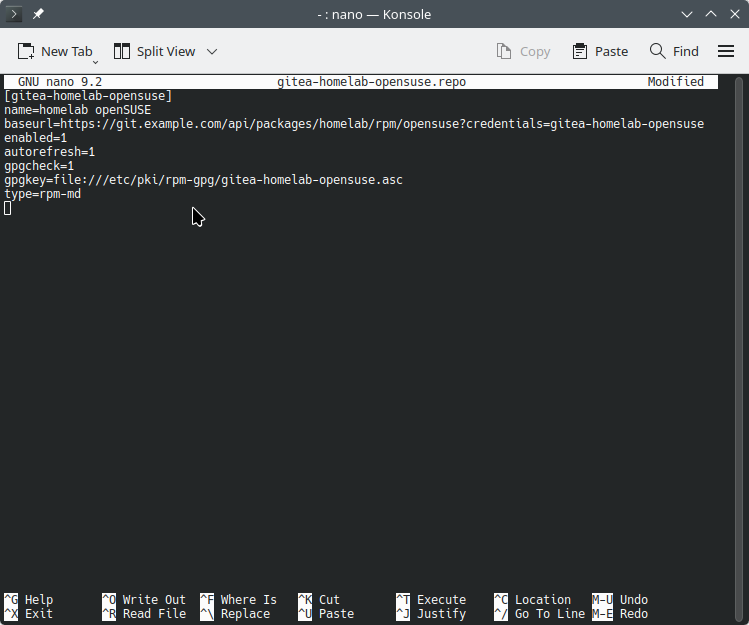
/etc/zypp/repos.d/gitea-packages-opensuse.repoAdd the following:
[gitea-packages-opensuse]
name=packages openSUSE
baseurl=https://git.example.com/api/packages/packages/rpm/opensuse?credentials=gitea-packages-opensuse
enabled=1
autorefresh=1
gpgcheck=1
gpgkey=file:///etc/pki/rpm-gpg/gitea-packages-opensuse.asc
type=rpm-md
Notice the ?credentials=gitea-packages-opensuse parameter in the baseurl.
This tells libzypp to load credentials from the matching file in /etc/zypp/credentials.d, rather than embedding them directly in the repository configuration.
You can read more about this feature in the official libzypp configuration documentation.
Now refresh the repository:
zypper --non-interactive --gpg-auto-import-keys refresh gitea-packages-opensuseThen install Cursor:
zypper --non-interactive install --allow-vendor-change cursorThe --allow-vendor-change flag permits zypper to install or replace the package from this repository even when the package vendor differs from another installed version.
Once installed, I can update Cursor using:
zypper refresh && zypper update cursorThat’s all the client needs. It can now use the private Gitea package registry like another RPM repository.
Option B: Configure a Public Gitea Repository
If your Gitea package owner is public, the setup is simpler.
You don’t need to create a credentials file.
After importing the signing key from the previous section, you can add the repository directly:
zypper addrepo https://git.example.com/api/packages/packages/rpm/opensuse.repoThen refresh and install:
zypper refresh
zypper install cursor
Remember to set TMPDIR=/var/tmp before installing.
If the generated repository file points directly to Gitea’s raw signing key, replace its gpgkey value with the local armored key:
gpgkey=file:///etc/pki/rpm-gpg/gitea-packages-opensuse.ascAfter that, the public and private configurations behave the same way from the client’s perspective.
Both Leap and Tumbleweed use the same Gitea repository and receive the same RPM.
5. Automatically Detect and Publish Cursor Updates
Manually uploading RPMs works, but I want the repository to stay current without having to check for releases myself.
I use a publishing job that runs once per hour.
The important part is detecting when a new RPM is available.
Find Cursor’s Latest RPM
Cursor exposes a download endpoint for its latest Linux x86_64 RPM:
https://api2.cursor.sh/updates/download/golden/linux-x64-rpm/cursor/latestThis endpoint redirects to the actual RPM download.
I use the redirect’s Location header to identify a new build.
You can inspect the redirect using:
curl -fsSI \
  "https://api2.cursor.sh/updates/download/golden/linux-x64-rpm/cursor/latest"
The resulting download URL contains a production commit identifier in a path resembling:
production/<commit>/For example, on September 26, 2026, the latest download pointed to a build associated with this commit:
37076c6c3f9e253c0fa2305197e45befd13a2268My publisher saves that commit identifier in a state file.
The next time it runs, it compares the current redirect against the saved identifier. If nothing changed, the job exits without downloading the entire RPM again.
This is especially useful for a package of approximately 290 MB.
Why I Use the Golden Download URL
Cursor also has a JSON-based update API, but it doesn’t accept the linux-x64-rpm platform identifier.
Instead of polling an unsupported platform through that API, I use the golden download endpoint.
It’s also important to use the URL ending in /cursor/latest, rather than one pinned to a specific release line such as /cursor/3.22.
A version-specific URL might receive updates within the 3.22 series but miss the next minor release.
The latest endpoint is what allows the publisher to keep following new versions.
How the Publishing Job Works
My hourly job follows five steps.
1. Check the upstream redirect
It sends a HEAD request to the golden download URL and extracts the commit identifier from the Location header.
2. Compare against the saved state
Each package has its own state file containing the identifier of its last successfully published build.
If the identifier matches, there’s nothing new to publish.
3. Download and inspect the RPM
When the identifier changes, the job downloads the RPM and reads the package metadata using rpm.
For example:
rpm -qp --nosignature \
  --queryformat '%{NAME}\n%{VERSION}-%{RELEASE}\n%{ARCH}\n' \
  cursor.rpm
This provides the package name, version-release, and architecture.
For the example Cursor RPM from September 2026, those values correspond to:
cursor
3.22.7-1790228250.el8
x86_64
4. Upload the new build
The job publishes the RPM to the opensuse group using Gitea’s upload endpoint with sign=true.
curl --user USER:TOKEN --upload-file cursor.rpm \
  "https://git.example.com/api/packages/packages/rpm/opensuse/upload?sign=true"
A successful upload returns 201, and Gitea regenerates the repository metadata.
After a successful publication, the job saves the new commit identifier to that package’s state file.
5. Remove older package versions
Finally, the publisher checks which versions are already stored in Gitea and keeps the two newest.
This allows me to retain one previous build without storing an unlimited number of RPMs.
Keep Only the Two Newest RPM Versions
Gitea exposes a REST API for retrieving the existing package versions.
For Cursor, the endpoint is:
GET /api/v1/packages/packages/rpm/cursor?limit=50The publisher retrieves the version list and sorts the entries by created_at, newest first.
It keeps the first two versions and deletes everything older.
The delete endpoint uses the package name, version-release, and architecture:
curl --user USER:TOKEN -X DELETE \
  "https://git.example.com/api/packages/packages/rpm/opensuse/package/cursor/VERSION-RELEASE/x86_64"
For example, the version-release of the September 2026 package was:
3.22.7-1790228250.el8Gitea returns 204 No Content when the deletion succeeds.
A 404 means the package version was already removed, while other unexpected responses indicate a failure that the job should report.
Keeping only two versions limits Cursor’s RPM storage to roughly 600 MB at the package sizes I was seeing when I configured this setup.
6. Schedule Automatic Updates With a systemd Timer
To run the publisher automatically, I use a systemd user service and timer on an always-on Linux machine.
This avoids needing a Gitea Actions runner or another CI system just to keep an RPM repository updated.
Configure the Publisher Environment
The publisher reads its Gitea credentials and repository settings from an environment file.
The file contains the following values:
GITEA_URL=https://git.example.com
GITEA_OWNER=packages
GITEA_USER=USER
GITEA_TOKEN=TOKEN
GITEA_GROUP=opensuse
KEEP=2
GITEA_GROUP defaults to opensuse, while KEEP defaults to 2.
I keep this file private using permissions of 600, since it contains the token with package publishing access.
The client-side read token is separate and isn’t required by the publisher.
Create the systemd Service
Create the following user service:
~/.config/systemd/user/opensuse-rpm-sync.serviceAdd:
[Unit]
Description=Publish vendor RPMs to the Gitea openSUSE repository
Wants=network-online.target
After=network-online.target

[Service]
Type=oneshot
EnvironmentFile=%h/.config/opensuse-rpm/env
ExecStart=%h/bin/sync-opensuse-rpm.sh
Nice=10
The ExecStart value points to the local publishing script. Adjust it to wherever you keep your own publisher.
The service uses Type=oneshot, meaning systemd runs the synchronization and considers the service complete when the script exits.
I’ve also set Nice=10 to give the job a lower scheduling priority than normal interactive processes.
Create the Hourly Timer
Next, create:
~/.config/systemd/user/opensuse-rpm-sync.timerWith the following configuration:
[Unit]
Description=Hourly openSUSE RPM sync

[Timer]
OnCalendar=hourly
Persistent=true
RandomizedDelaySec=5min

[Install]
WantedBy=timers.target
There are two useful settings here.
Persistent=true tells systemd to trigger a missed scheduled run after the machine becomes available again.
Meanwhile, RandomizedDelaySec=5min introduces a small random delay so the job doesn’t necessarily start at the exact beginning of every hour.
Hourly checks are sufficient for the software I’m mirroring.
Enable the Timer
Reload the user systemd configuration and enable the timer:
systemctl --user daemon-reload
systemctl --user enable --now opensuse-rpm-sync.timer
I also enable user lingering:
loginctl enable-linger "$USER"This allows the user systemd instance to continue running even when the account isn’t actively logged in.
At this point, the timer runs the publishing job automatically without requiring a desktop session or an interactive terminal.
7. Add More RPM Packages to the Same Repository
Although I currently use this repository for Cursor, the same approach works for additional vendor RPMs.
There’s no need to create a new Gitea package group or add another repository on the openSUSE clients.
Instead, the publisher uses a separate source definition for each package.
Every published RPM appears in the existing opensuse group.
Cursor’s Source Configuration
For Cursor, the source definition looks like this:
NAME=cursor
KIND=redirect
URL=https://api2.cursor.sh/updates/download/golden/linux-x64-rpm/cursor/latest
STATE_REGEX=.*/production/\([^/]*\)/.*
KEEP=2
The redirect source type sends a HEAD request to the URL and uses the redirect destination as the identity.
The optional STATE_REGEX extracts a specific identifier from that URL.
In Cursor’s case, it extracts the production commit.
If the regular expression doesn’t match the redirect, the publisher treats that as an error rather than blindly downloading and publishing an unexpected file.
Supported Source Types
My publisher handles three different types of package sources.
| Source type | How changes are detected |
|---|---|
redirect | HEAD request and redirect Location, optionally processed by STATE_REGEX |
url | ETag, Last-Modified, and Content-Length headers, with SHA256 fallback |
file | SHA256 checksum of a local RPM |
For a direct URL, the publisher combines the available HTTP metadata into an identity.
If the server provides none of those headers, the publisher downloads the file and computes its SHA256 checksum instead.
For a local file, the checksum serves as the identity from the beginning. If the file doesn’t exist, the job reports a failure.
Example: Add a Second Package
Suppose I have another application distributed through a direct RPM download.
Its source definition could look like this:
NAME=example
KIND=url
URL=https://example.com/example-latest.x86_64.rpm
KEEP=2
The next sync checks this source along with Cursor.
Each package maintains a separate state file, using its package name as the filename. For example, the files could live under a state directory such as:
~/.local/state/opensuse-rpm/Keeping separate state files prevents an update to one package from affecting change detection for another.
The publisher also processes sources independently. If one source fails, it continues processing the others, but the overall job still exits with a failure status.
Once the additional package is uploaded, it becomes available through the same Gitea repository.
On an openSUSE client, I can install it using:
zypper install exampleNo additional .repo file is necessary.
Adding the repository and refreshing its metadata does not automatically install every package it contains. Clients still choose which packages to install.
8. Troubleshooting Common Problems
There are a few issues worth checking if the repository doesn’t behave as expected.
HTTP 413 When Uploading an RPM
If the upload returns:
413 Request Entity Too LargeCheck the request body size limit on the reverse proxy in front of Gitea.
For nginx, this is controlled by client_max_body_size.
Remember that the limit must accommodate the full RPM file, not just a small metadata request.
zypper Rejects the Package Signature
Check that Gitea signed the RPM during upload.
Cursor’s upstream RPM is unsigned, while the generated repository enables gpgcheck=1.
Make sure you’re using sign=true or have enabled DEFAULT_RPM_SIGN_ENABLED in Gitea.
Also verify that you’ve imported the public key belonging to the correct Gitea package owner.
If rpm --import rejects the raw repository.key, convert it to an ASCII-armored key using the GnuPG steps earlier in this guide.
Don’t disable package signature verification just to work around an incorrectly configured repository.
Private Repository Refresh Fails
If zypper refresh can’t read the repository metadata, verify the credentials file.
Check that:
- The token has package read access.
- The
?credentials=value matches the credentials filename. - The file is stored under
/etc/zypp/credentials.d. - The file contains the correct
usernameandpasswordfields.
For private owners, an anonymous refresh won’t have permission to retrieve the package metadata.
Downloads Fail When Moving the RPM
If zypper reports an error while renaming or moving a downloaded package, check whether /tmp and /var reside on different filesystems.
Use:
export TMPDIR=/var/tmp
mkdir -p "$TMPDIR"
Then retry the zypper operation from the same shell.
Cursor Updates Aren’t Being Detected
First, make sure the publisher checks the golden URL ending in:
/cursor/latestA URL pinned to a specific release line can miss newer minor releases.
Next, inspect the redirect using curl -fsSI and confirm that the Location header contains the expected production commit.
Also check the package’s saved state file and the systemd service logs to confirm the hourly job actually ran.
Multiple Repositories Provide Cursor
If you’ve installed dnf, check whether Cursor’s RPM created:
/etc/yum.repos.d/cursor.repoI remove this file to avoid maintaining a second Cursor package source through its upstream yum repository.
You can also inspect your enabled zypper repositories using:
zypper lrAnd verify the installed Cursor RPM with:
rpm -q cursorThe installed package name and version should correspond to the RPM published through Gitea.
Conclusion
Using Gitea as an openSUSE RPM repository gives me a straightforward way to distribute third-party packages across multiple Linux machines without maintaining a separate package server.
Gitea already handles RPM storage, package signing, and repository metadata, while zypper takes care of installation and dependency resolution on the clients.
The hourly publisher handles the remaining work: detecting upstream releases, downloading new RPMs, publishing signed packages, and keeping the number of stored versions under control.
The result is a single repository shared between Leap and Tumbleweed, with no need to manually download Cursor’s RPM every time a new build becomes available.
If you’re maintaining several openSUSE installations, I’ve also written guides covering upgrading openSUSE Leap from 15.5 to 15.6 and upgrading openSUSE Leap 15.6 to 16.0.
For additional package management references, you can also check out the tools available on TechOpt.


Leave a Reply