Google Docs makes it easy to insert images. However, when you want to pull those images back out, the UI gives you nothing. It seems almost impossible to copy or download images from Google Docs!
To start, Docs doesn’t show a “Download image” button. Worse, it also doesn’t give you “Save image as…” when you right-click. As a result, Google Docs effectively doesn’t let you download embedded images directly, even with a right click.
Fortunately, one export option does get the job done: export the doc as a zipped web page.
Why this is annoying
If you’ve tried the obvious moves, then you’ve already hit the same dead end:
- Right-click an image → no “Save image as…”
- Select an image → no export action
- Copy/paste → normally doesn’t work (and quality can drop if it does)
In other words, Docs treats images as part of the document canvas, not as separate files you can retrieve.
The workaround: export the Doc as a zipped web page
Instead of fighting the editor, you can force Google Docs to package the document like a small website. That way, the package includes the images as standalone files.
Steps
- First, open your Google Doc.
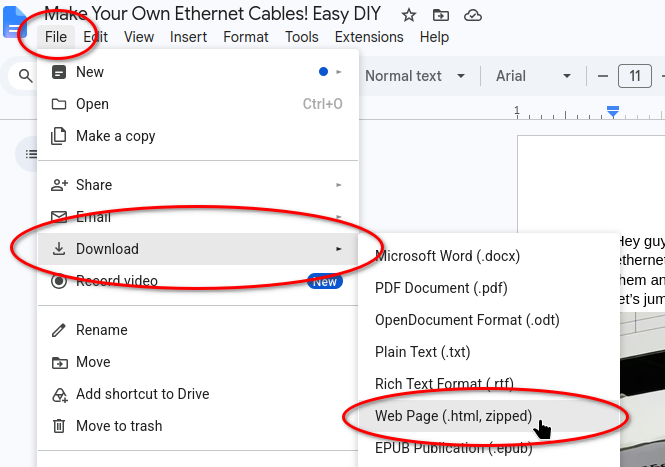
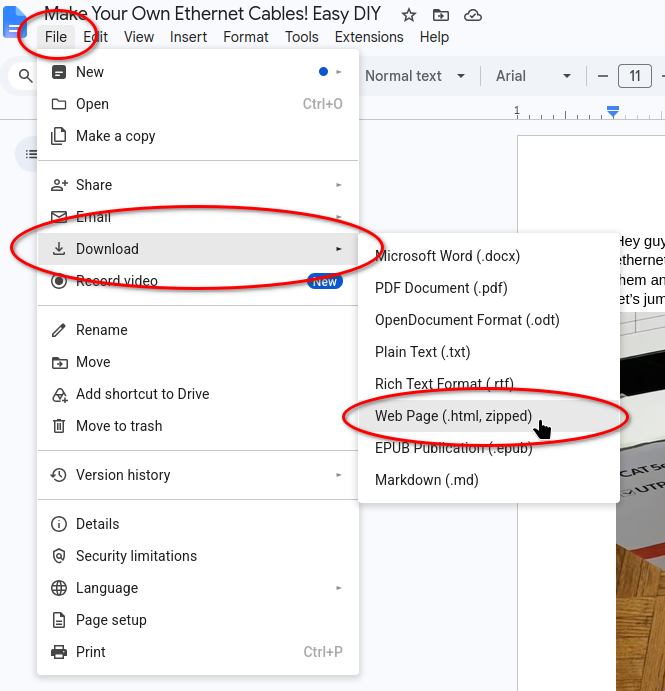
- Next, click File → Download → Web Page (.html, zipped).

- Then, find the downloaded .zip file on your computer.
- After that, unzip it:
- macOS: double-click the zip
- Windows: right-click → Extract All…
- Finally, open the extracted folder.
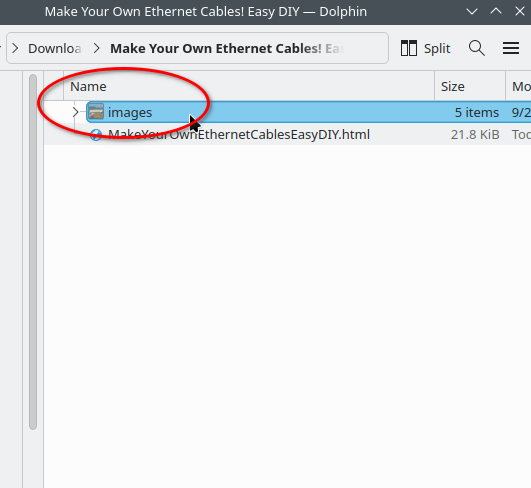
At this point, you’ll typically see:
- An .html file (your document content)
- A companion folder (often named something like
<document name>_files)
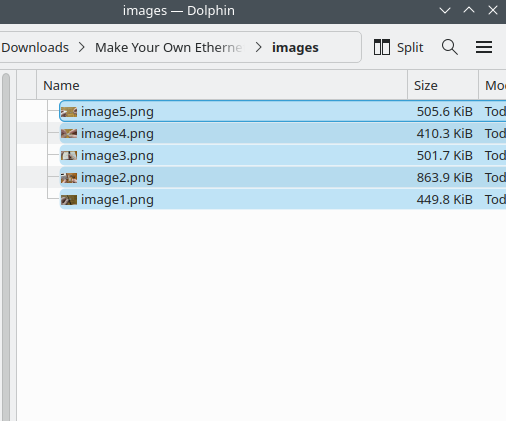
Now open the companion folder. Inside, you’ll find the exported images as .png/.jpg/.gif files.
What to expect after you extract the zip
Filenames won’t match your document
Generally, Docs assigns generic names like image1.png, image2.jpg. Therefore, if you export many images, plan to rename them.
Image formats follow the originals (mostly)
In most cases, Docs keeps the original format (JPG stays JPG, PNG stays PNG). Still, some edge cases can trigger re-encoding, especially if you pasted content from elsewhere.
Quality usually holds up
Typically, exports preserve the stored resolution. That said, if you copied an image from a low-res source, the export can’t recover what never existed in the Doc.
Quick troubleshooting for downloading images from Google Docs
You don’t see an images folder
First, confirm you chose Web Page (.html, zipped). Otherwise, if you used PDF or DOCX, you likely won’t get a clean asset folder.
Your device blocks zip downloads or extraction
Sometimes work/school policies restrict downloads. In that case, try a different browser, download to Desktop/Documents, or use a personal machine.
You only need one image
Even so, this method stays the most predictable option. After all, Docs still won’t offer a direct “download this image” action inside the editor.
Why this works
Essentially, the web page export turns your document into an HTML page plus assets. Because HTML needs separate image files to render correctly, Google Docs places each embedded image into an assets folder.
Wrap-up
Ultimately, Google Docs doesn’t provide a direct way to download images from a document, and right-click won’t save you here. Instead, use the export path that forces Docs to create separate files:
File → Download → Web Page (.html, zipped) → unzip → open the *_files folder → grab your images.


Leave a Reply