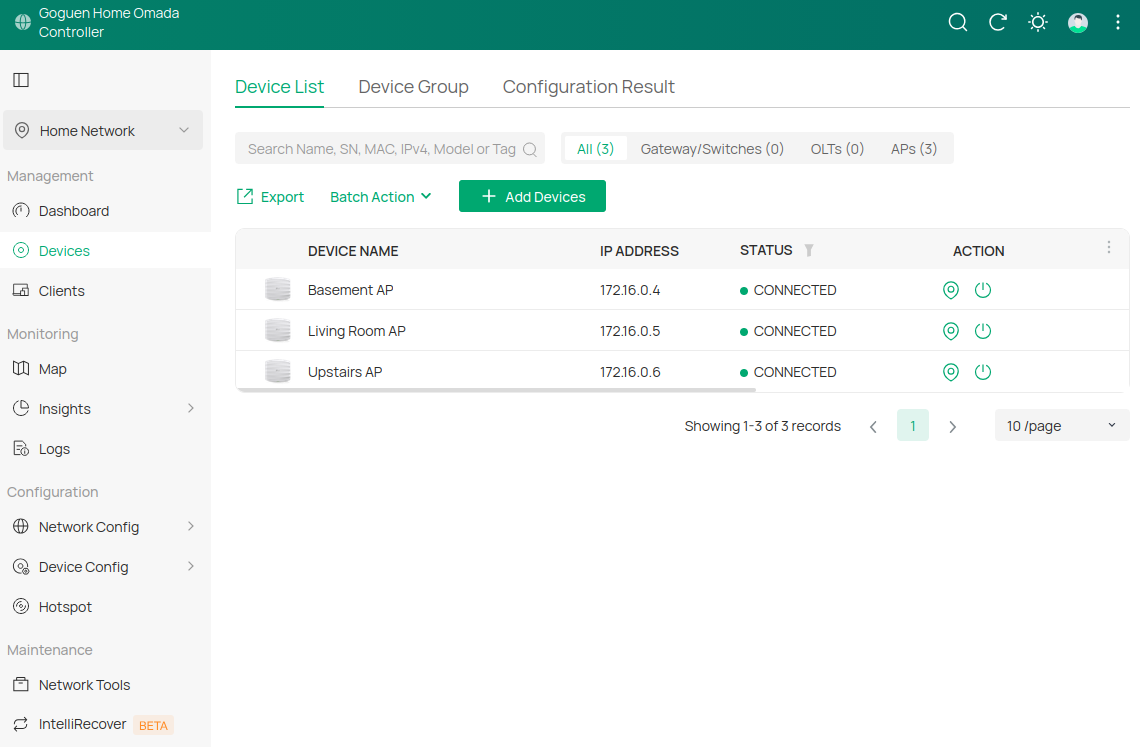
If there’s one part of my family’s home network that has stood the test of time, it’s the Wi-Fi. My TP-Link Omada home network uses three wired access points, spread across three floors, and the EAP245 hardware I installed nearly a decade ago is still going strong.
That’s what I want from home networking equipment: good coverage, minimal maintenance, and no need to replace it every few years.
Three Access Points, One on Each Floor
At my parents’ house, I use three access points in different parts of the home:
- Basement: One access point covers the lower level.
- Main floor: Another sits in the living room.
- Upstairs: The third is in the hallway, helping cover the bedrooms and upper floor.
For this TP-Link Omada home network, Cat5e Ethernet cables run from each access point to a central network switch in the basement. This gives every floor a direct wired connection rather than relying on wireless connections between access points.
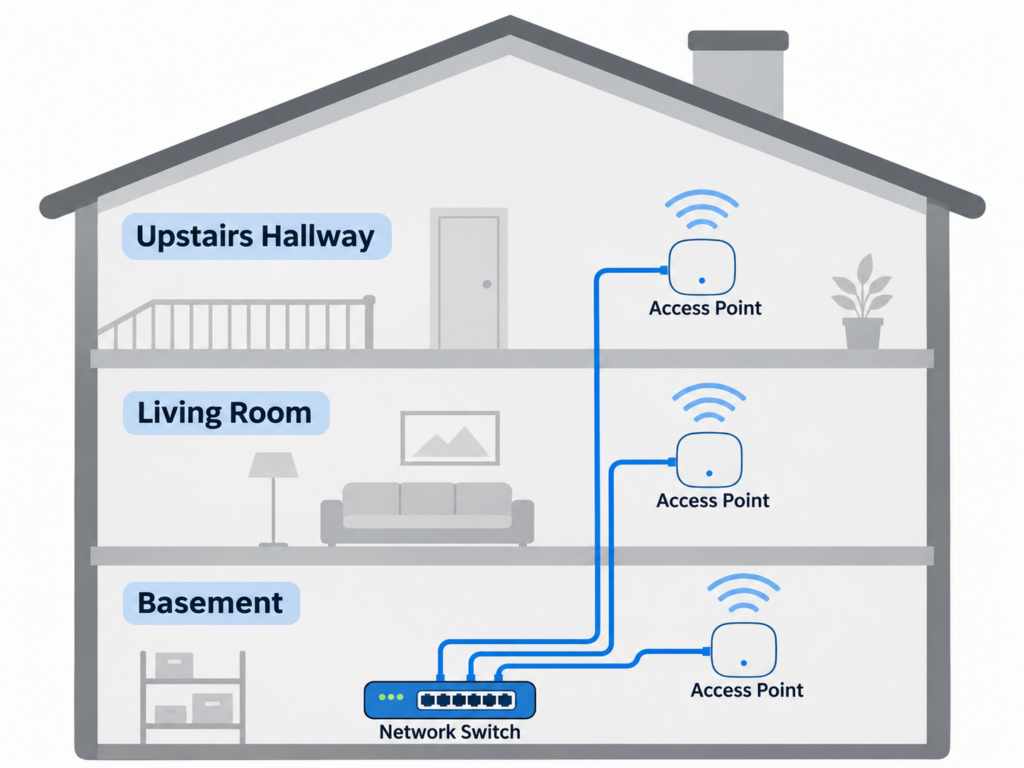
Instead of expecting a single router to reach through multiple floors and walls, I put Wi-Fi closer to where people actually use it.
Each access point connects back to the Omada Controller software, and they’re managed together through the Omada web interface. They broadcast one familiar Wi-Fi network throughout the house.
Building materials and layout matter, but one access point per floor has worked well for this house.
Why I Chose Ethernet Backhaul Instead of Wireless Mesh
Probably the most important part of this setup isn’t the access point model. It’s the fact that all three are connected using existing Cat5e Ethernet cables.
That’s Ethernet backhaul: each access point has a wired path to the network instead of relaying traffic wirelessly.
I prefer this for three reasons:
- Predictable performance: The backhaul doesn’t depend on another wireless signal.
- Less congestion: Wi-Fi airtime goes to devices rather than wireless backhaul.
- Better placement: Access points go where coverage is needed, not where a mesh link happens to work.
Wireless mesh is a reasonable fallback, but if Ethernet is already in the walls, use it.
And yes, Cat5e is still useful. For the gigabit connections on these older access points, it does the job. You don’t need to tear out perfectly good cable just because Cat6 and newer Wi-Fi standards exist. If you’re installing fresh runs, I’d lean toward Cat6.
If you want to make or repair your own cables, I’ve also written a step-by-step guide to making Ethernet cables.
The EAP245: Nearly a Decade Later, Still Going Strong
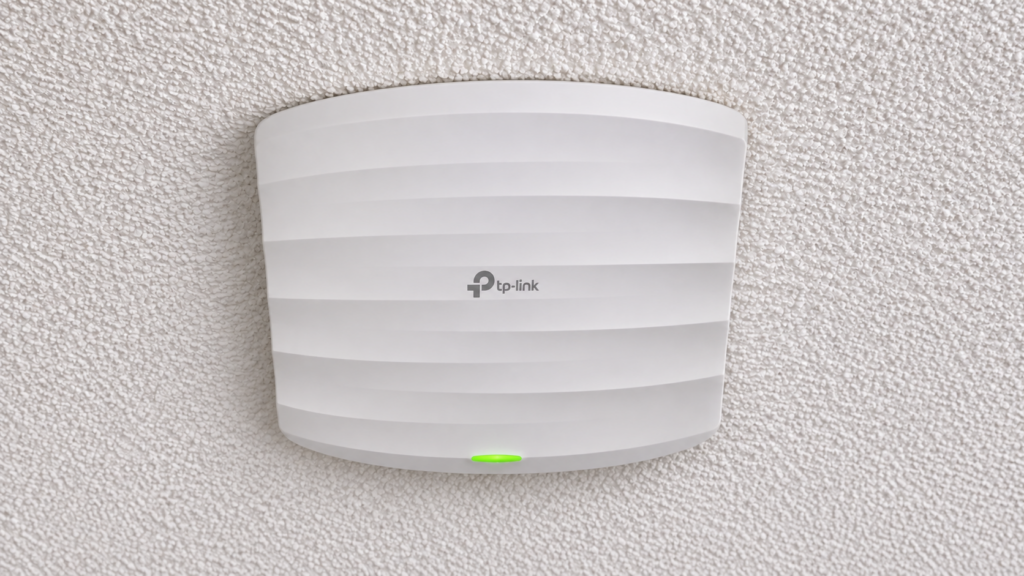
The access point that sold me on Omada was the TP-Link EAP245. It’s an older dual-band Wi-Fi 5 model with gigabit Ethernet, not something I’d choose for a new installation in 2026.
But the EAP245s in my parents’ house are still working, almost ten years after I first went with them. That kind of longevity matters more to me than a flashy headline speed.
If existing equipment covers the house and handles its devices, upgrading just because a new Wi-Fi generation launched adds cost.
Newer standards can help with modern devices and busier networks. I’m just not in a hurry to replace working hardware.
Why I Like My TP-Link Omada Home Network
Omada sits in a nice middle ground for me. It’s more flexible than a typical consumer all-in-one router, without requiring you to buy an entire ecosystem at once.
The big advantage is centralized management: one interface for all three access points, plus coordinated wireless settings and roaming features.
I particularly like that I can use Omada access points without needing an Omada-branded router or switch. At my parents’ house, the controller manages the three access points, not an entire TP-Link networking stack.
It isn’t quite as simple as a single consumer router, but it’s a good balance for a larger home.
Software Controller or Hardware Controller?
Another reason I like Omada is that it gives you a choice in how to manage your network.
I use the free Omada Software Controller. Mine runs in an Ubuntu virtual machine on my OPNsense firewall. This lets me manage the access points through a browser without buying a separate controller. If you’re interested in that side of the setup, I’ve covered running virtual machines on OPNsense with bhyve.
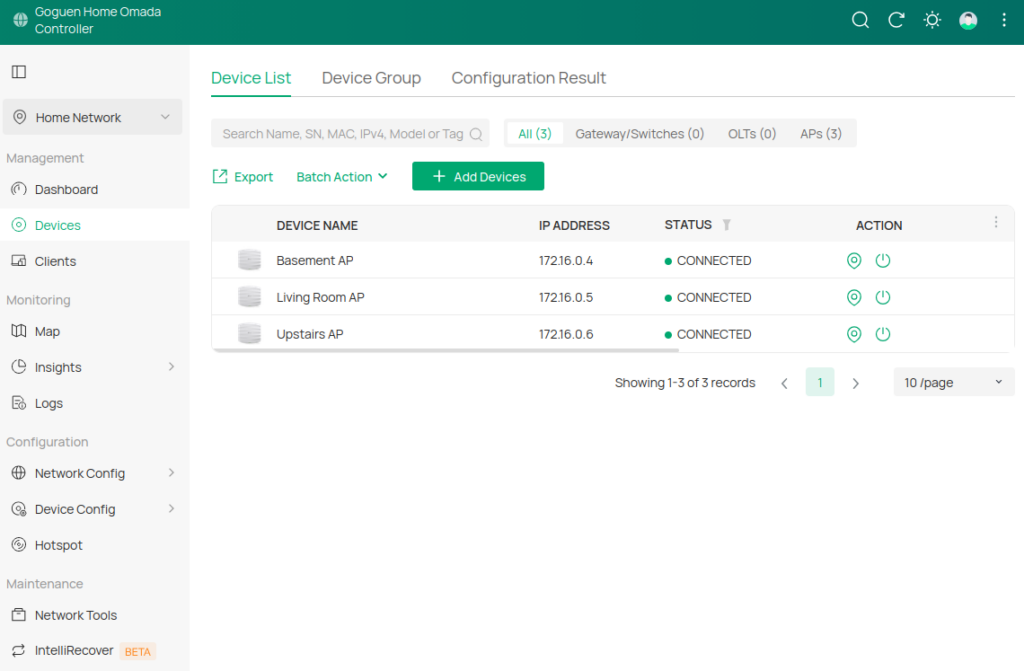
You can also run it on a supported Windows or Linux computer, although you’re responsible for keeping it running and updated.
The alternative is the Omada OC200 hardware controller. It’s a small dedicated box that handles management without needing a PC or server. I’d seriously consider it if I didn’t already have a VM host.
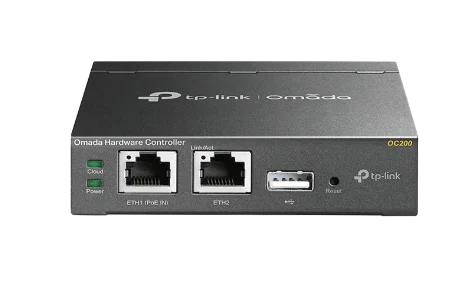
You can find the OC200 on Amazon (affiliate link).
The controller doesn’t carry Wi-Fi traffic. Access points keep serving devices if it goes offline, although controller-dependent features temporarily become unavailable.
Which Access Points Would I Buy Today?
For a new installation, I’d look at two newer models: the EAP650 and EAP772.
EAP650: The Practical Wi-Fi 6 Choice
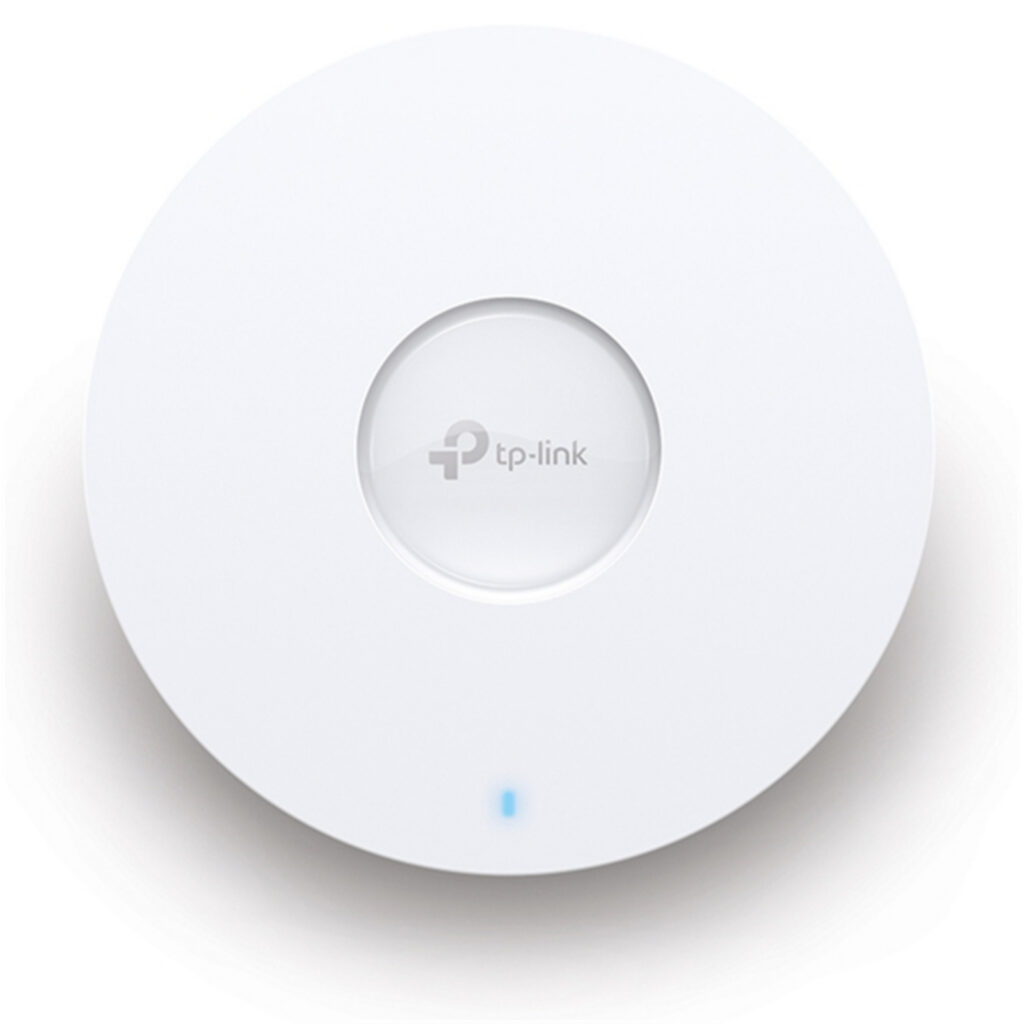
For most homes with Ethernet already in place, I’d start with the Omada EAP650. It’s a Wi-Fi 6 access point with a gigabit wired connection, PoE support, and integration with the same Omada management platform.
For a setup like my parents’ house, this would be my first choice if I were starting over. It gives a good balance between budget and performance.
Find the EAP650 on Amazon (affiliate link).
EAP772: A More Future-Focused Wi-Fi 7 Option
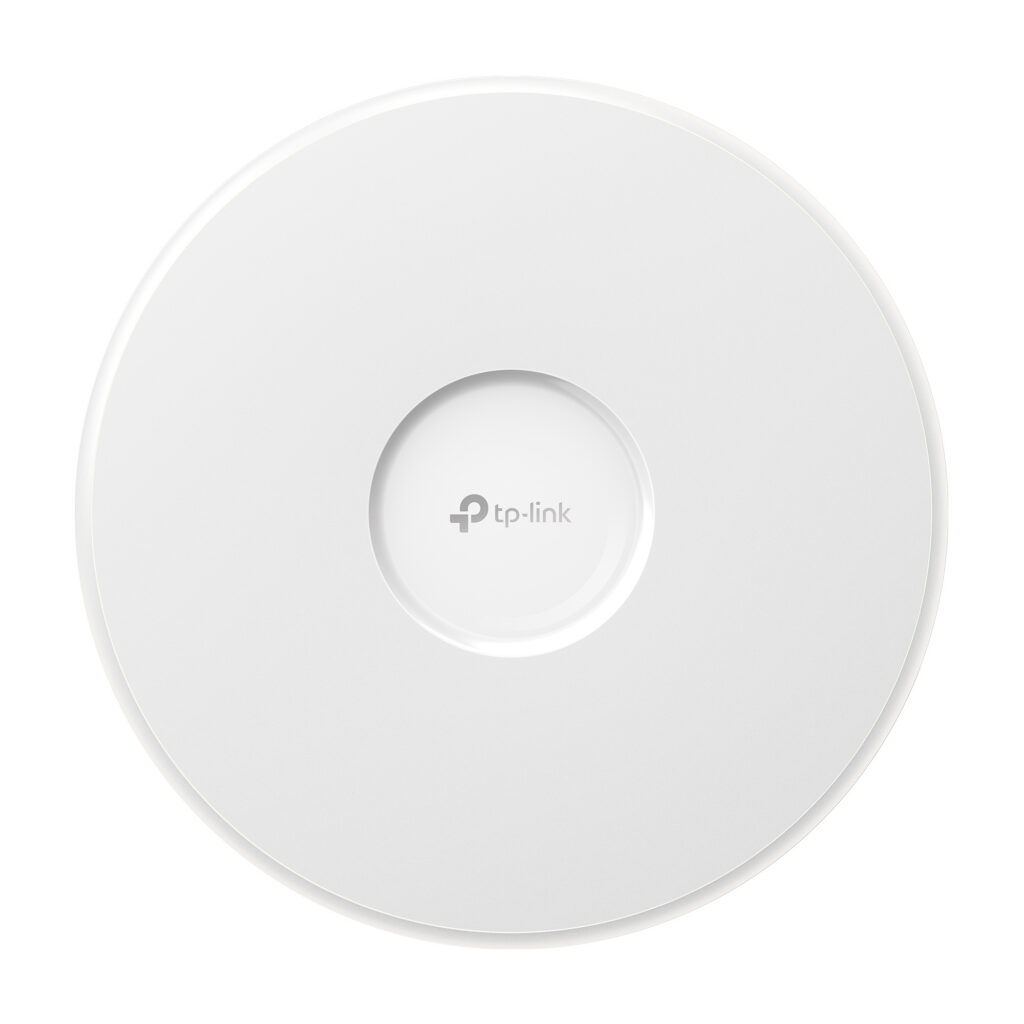
If I were building a higher-end network today, I’d also look at the Omada EAP772. It adds Wi-Fi 7, a 6 GHz band, and a 2.5-gigabit Ethernet port.
It’s worth considering if you have compatible devices. But Wi-Fi 7 won’t automatically make every device faster, and a full-speed setup may also need a compatible switch and sufficient PoE power.
Find the EAP772 on Amazon (affiliate link; product search).
For either model, I’d still focus on where the access points go and how they connect before obsessing over advertised maximum speeds.
EAP245: A Budget-Friendly Wi-Fi 5 Option
If you’re on a tight budget, the Omada EAP245 (Amazon affiliate link) is still worth considering. It’s the same model I’ve been using for nearly a decade, and it’s still available through some retailers.
While it only supports Wi-Fi 5, it offers dual-band wireless, gigabit Ethernet, PoE, and centralized management through Omada.
TP-Link has officially discontinued the EAP245, so keep that in mind. However, if you can find one at a substantial discount, it could be a great way to build an affordable home Wi-Fi network without spending a fortune.
Would I Choose Omada Again?
Absolutely. My TP-Link Omada home network has been running reliably for nearly a decade, and I’d happily choose Omada again for another multi-floor house.
Three floors, three access points, and Cat5e backhaul have provided the coverage we wanted for years.
If you’re starting fresh, I’d buy newer access points rather than hunt down EAP245s. But the lesson I’ve taken from nearly a decade with this hardware is that good placement, wired backhaul, and reliable equipment matter more than chasing the newest Wi-Fi label.
The nice thing about TP-Link Omada is that it’ll be easy to upgrade my family’s EAP245s by simply connecting newer models to the existing Ethernet backhaul and controller software when I finally decide it’s time!

Leave a Reply