I use Active Directory to automatically install Microsoft Office on Windows computers. If you want to deploy Office with Active Directory, you don’t need to manually run the installer on every computer. I use a Group Policy scheduled task and a custom PowerShell script to handle downloading, installing, and retrying Office on domain-joined machines.
TL;DR: My domain controllers store a small deployment package in SYSVOL. Each eligible Windows computer runs the script as SYSTEM, downloads Office directly from Microsoft, and remembers whether it has successfully applied the current configuration. I’ve published the custom Office deployment script I wrote on GitHub so you can adapt the same approach to your domain.
As of this article, my policy installs Office LTSC Professional Plus 2024, Visio LTSC Professional 2024, and Project Professional 2024 on two Windows 11 Pro machines I have joined to my domain. Here are the exact Group Policy settings I use.
How the Office Deployment Works
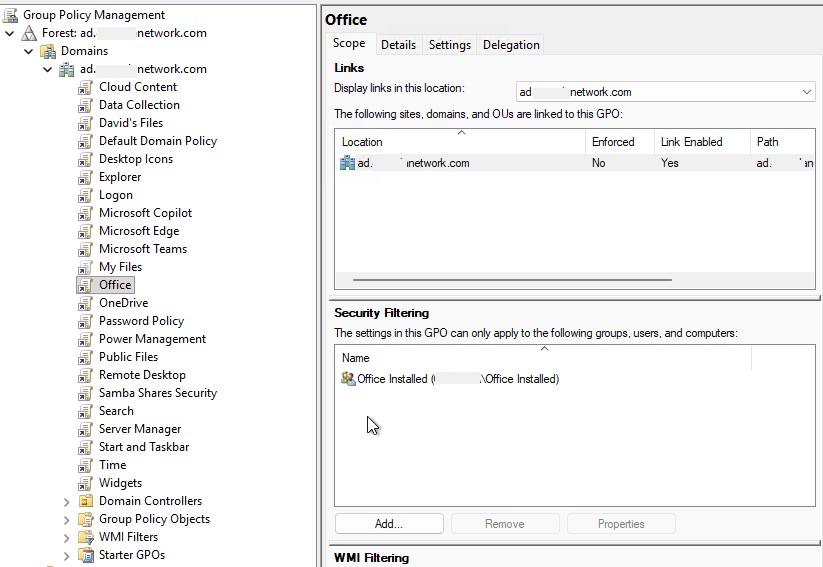
I have a Group Policy Object (GPO) named Office, linked at the domain level. It creates a computer scheduled task named InstallOfficeTask on the machines I allow through security filtering. The task doesn’t require a user to sign in.
My domain controllers store the PowerShell script, the Office Deployment Tool (ODT), an XML configuration, and a one-line version label. They do not host the Office installation files. Each Windows computer downloads those from Microsoft’s CDN and installs them locally. Microsoft also supports this download-and-configure workflow through the Office Deployment Tool.
This is a computer policy, not a logon script.
Step 1: Prepare the Office Files in SYSVOL
To deploy Office with Active Directory, I keep the deployment files in SYSVOL rather than storing the full Office installation source on my domain controllers. Here is the folder I use (with a placeholder domain name):
\\example.com\SYSVOL\example.com\software\ODT\Create the folder and put these four files in it:
| File | What it does |
|---|---|
Deploy-Office.ps1 | My PowerShell script, which controls the deployment |
setup.exe | The Office Deployment Tool executable from Microsoft |
config.xml | Defines the Office products, channel, language, installation, and removal settings |
desired_version.txt | A one-line label that tells computers when to redeploy |
Download and extract the current Office Deployment Tool from Microsoft; don’t download setup.exe from an unofficial mirror. The repository has examples, not the ODT executable or my keys.
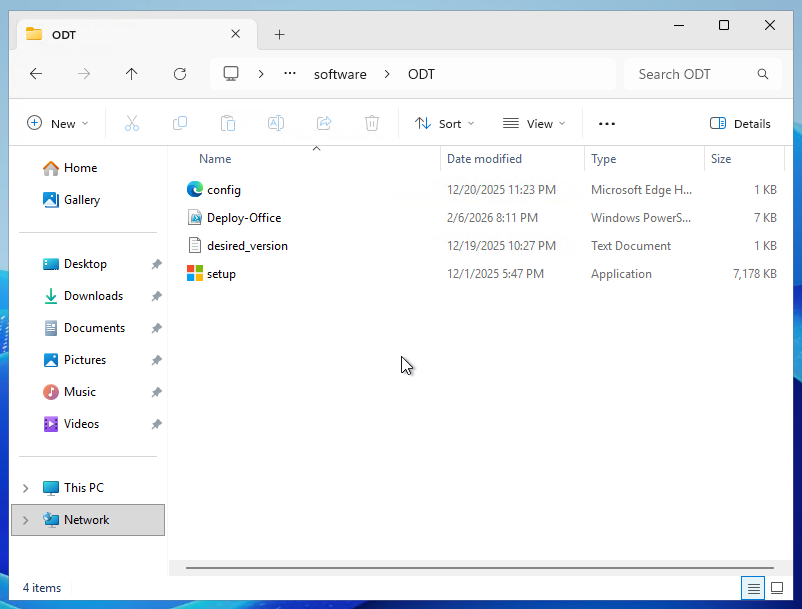
Since I have two domain controllers, I use the domain-based UNC path instead of a specific domain controller’s hostname. Either controller can serve the files after replication.
Important: Protect this folder with appropriate permissions. My live config.xml contains volume product keys; don’t publish it, commit it to Git, or make it broadly readable. The computers that run the task need read access to the files.
Step 2: Configure Your Office Version
My config.xml installs 64-bit Office in US English with the PerpetualVL2024 channel. The selected product IDs are:
| Product | Office Deployment Tool ID |
|---|---|
| Office LTSC Professional Plus 2024 | ProPlus2024Volume |
| Visio LTSC Professional 2024 | VisioPro2024Volume |
| Project Professional 2024 | ProjectPro2024Volume |
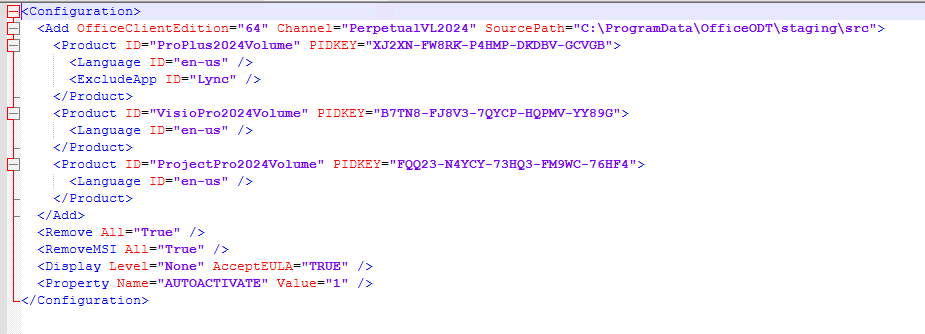
The configuration excludes Lync from the Office product, hides the setup UI with Display Level="None", accepts the license agreement, and sets AUTOACTIVATE to 1. It also removes other Click-to-Run Office products with Remove All="True" and legacy MSI versions with RemoveMSI All="True".
Check those removal settings before copying my example. They can uninstall existing Office products. Use your own keys in a private configuration. For different products or languages, consult Microsoft’s ODT configuration options.
One value must remain exactly as shown for my script:
SourcePath="C:\ProgramData\OfficeODT\staging\src"This path is local to each workstation, not the domain controller. The script downloads there, installs Office, and clears staging.
Finally, my desired_version.txt contains just:
2024VolumeThis is a deployment label, not an Office build number. We’ll use it to roll out changes later.
Step 3: Deploy Office with Active Directory Using a GPO
Open Group Policy Management and create a GPO named Office. Link it to your domain, then decide which computer accounts should receive it.
In my setup, the workstations are still in Active Directory’s default Computers container. That container isn’t an organizational unit, so you can’t link a GPO directly to it. Instead, I keep the GPO linked at the domain and use security filtering to prevent it from applying everywhere.
Here’s how I limit mine:
- Create an Active Directory security group for the computers you want to target.
- Add the computer accounts, not user accounts, to that group. Mine contains two Windows 11 Pro machines.
- On the Office GPO’s Scope tab, remove
Authenticated Usersfrom Security Filtering and add your computer security group. - Confirm that this group has both Read and Apply Group Policy permissions on the GPO. It also needs read access to the policy files in SYSVOL.
- Restart each computer after adding its account to the group.
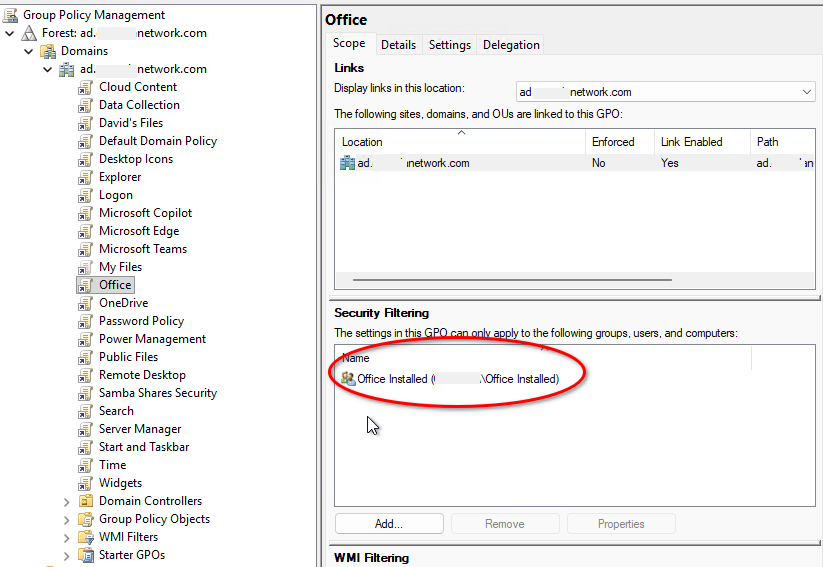
That last step matters: a computer’s security-group membership is reflected in its logon token at startup. Running gpupdate immediately after changing its membership isn’t enough. Microsoft documents the required Group Policy scope and permissions.
I don’t have a WMI filter or item-level targeting on the task. Security filtering alone decides which computers register it. A computer outside the group never receives InstallOfficeTask.
Step 4: Configure the Scheduled Task in Group Policy
Edit Office and navigate to:
Computer Configuration
  > Preferences
  > Control Panel Settings
  > Scheduled Tasks
Create a scheduled task for Windows 7 or later, then configure these settings to match my policy:
| Setting | Value |
|---|---|
| Task name | InstallOfficeTask |
| Account | NT AUTHORITY\System |
| Logon type | S4U |
| Run level | Highest privileges |
| Program/script | cmd.exe |
| Start when available | Enabled |
| Execution time limit | 3 days (P3D) |
| If already running | Ignore the new instance |
| Priority | 7 |
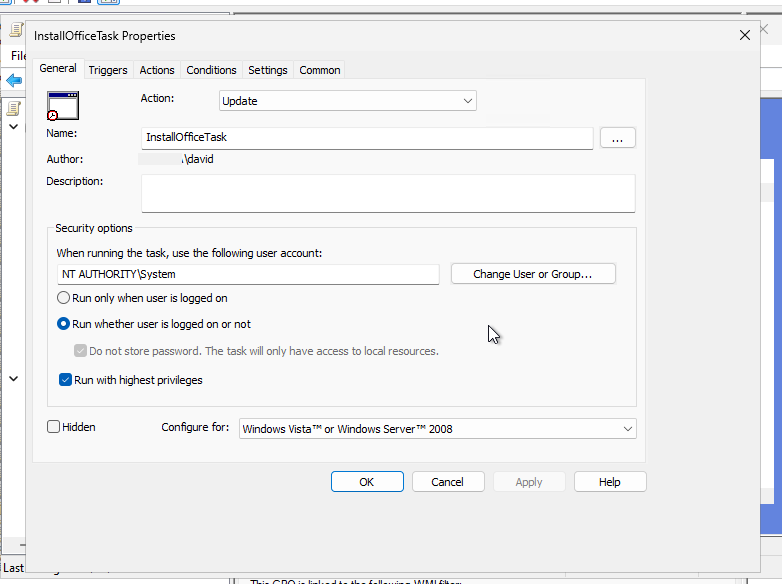
For the action’s Arguments, I use:
/c start "" /abovenormal powershell.exe -NoProfile -ExecutionPolicy Bypass -File "\\example.com\SYSVOL\example.com\software\ODT\Deploy-Office.ps1"Replace example.com with your own domain name. The task’s priority is 7, while start /abovenormal gives the PowerShell process above-normal priority. Running as SYSTEM lets the computer install Office without anyone logged in.
I’ve enabled three triggers: at startup, when the task is registered, and daily at 22:30 (or 10:30 PM). I also enable Start the task as soon as possible after a scheduled start is missed, so a computer that’s off at the scheduled time can run later.
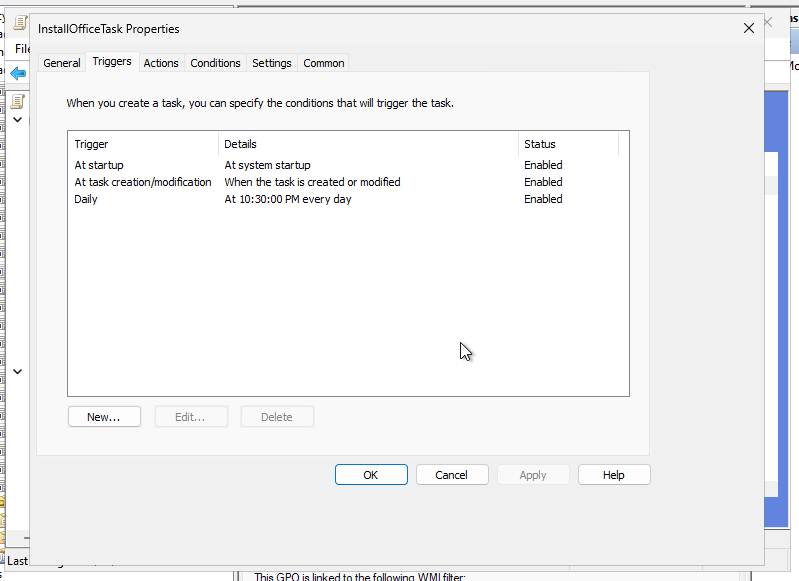
The task can begin while the machine is on battery, but my current setting stops it if the computer switches to battery power. That’s worth changing if you plan to deploy to laptops that frequently get unplugged.
Step 5: Let Each Computer Download and Install Office
Once the GPO applies, the scheduled task calls my PowerShell script directly from SYSVOL. At boot, though, the network or SYSVOL might not be ready. My script checks for its three required companion files for up to 150 seconds (30 attempts, five seconds apart) before giving up without reporting success.
When the files are reachable, it reads desired_version.txt and compares the label with the local state file:
C:\ProgramData\OfficeODT\state.jsonIf LastAppliedVersion matches and LastStatus is success, there’s nothing to do. Otherwise, the script copies setup.exe and config.xml to local staging, marks the run in_progress, and invokes the ODT in this sequence:
setup.exe /download <local config.xml>
setup.exe /configure <local config.xml>
The download comes from Microsoft’s CDN, so each workstation needs internet access. The domain controllers don’t download Office.
On success, the script records the label and success status, then deletes the staging directory, including the Office installation files. It also uses a Global\OfficeODTDeploy mutex to prevent duplicate script runs, alongside the scheduled task’s ignore-new-instance setting.
If the download or installation fails, it records download_failed or configure_failed without advancing LastAppliedVersion. A later task run can try again.
Step 6: Verify Your Office Group Policy Deployment
On an eligible workstation, open Task Scheduler and find InstallOfficeTask. You can also check in an elevated PowerShell window:
Get-ScheduledTask -TaskName InstallOfficeTask
Get-Content 'C:\ProgramData\OfficeODT\state.json'
Get-Content 'C:\ProgramData\OfficeODT\deploy.log' -Tail 40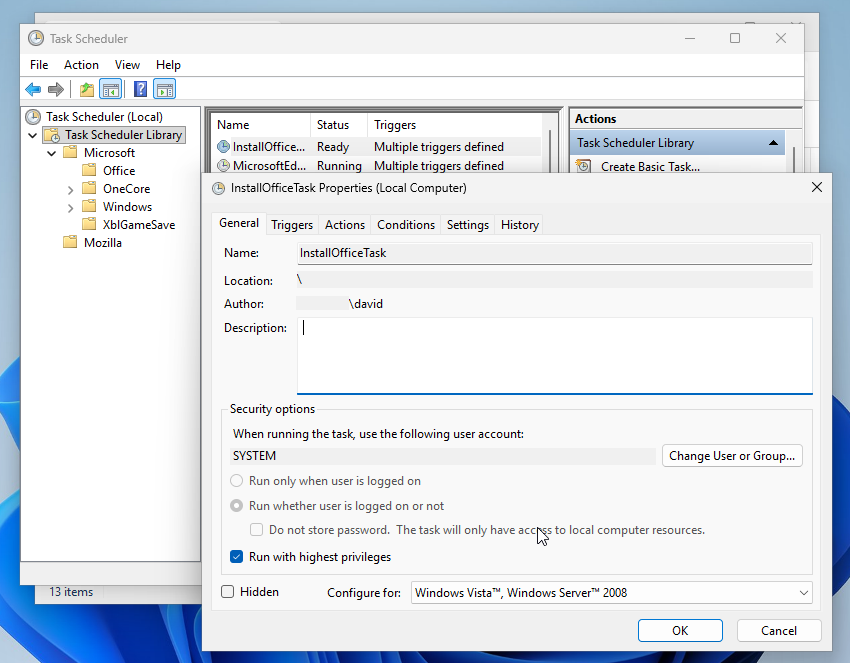
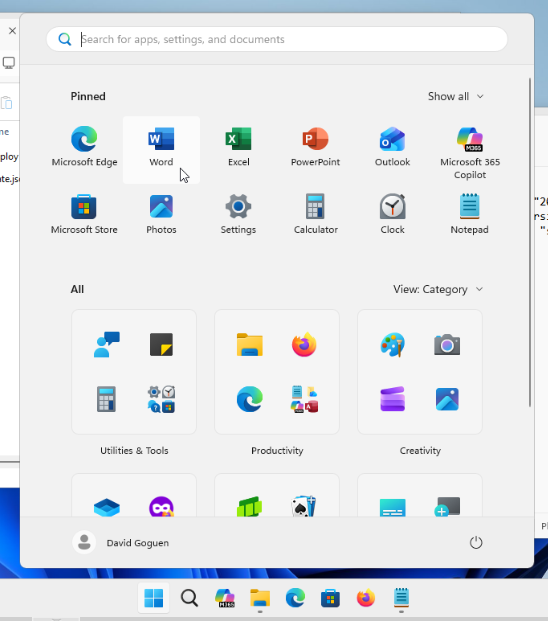
The local log uses yyyy-MM-dd HH:mm:ss timestamps and prunes entries older than 30 days. You can also open Word, Visio, or Project to confirm that the intended software is installed.
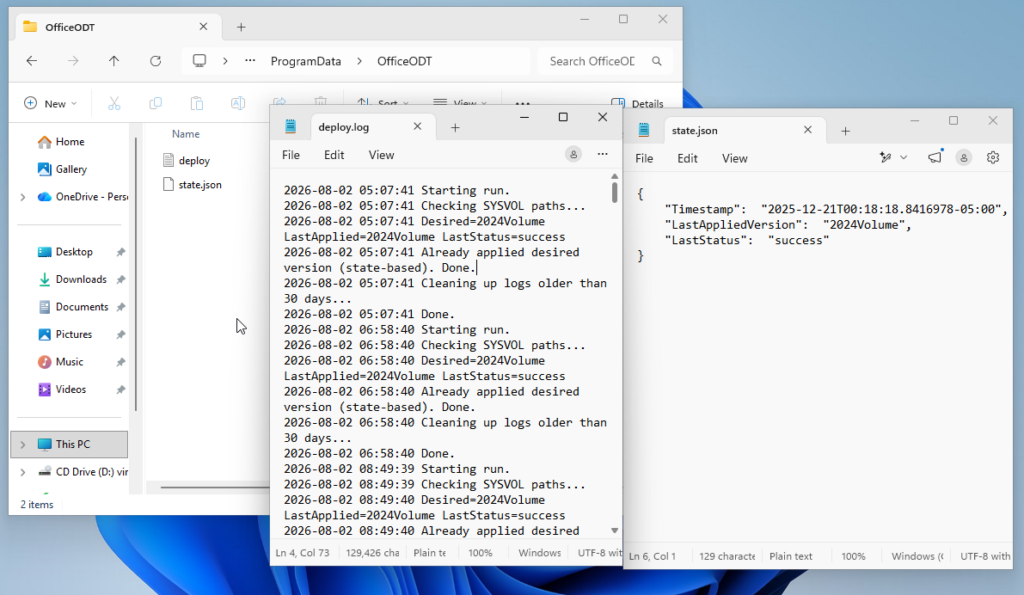
Don’t rely only on Task Scheduler’s Last Run Result. My script exits with code 0 even when /download or /configure fails. The useful status is in state.json and deploy.log, not in the task’s result field. Active Directory doesn’t centrally store each computer’s applied label either.
Step 7: Roll Out a New Configuration
To deploy Office over Active Directory again after changing the installed products or settings, I edit config.xml on SYSVOL and change the single line in desired_version.txt to a new label.
The label is what tells the script to perform another deployment. Editing config.xml alone does not reinstall Office on a machine already marked successful for 2024Volume.
At the next task run, eligible machines apply the new config. A failed attempt doesn’t advance the successful-version marker, so another run retries.
Troubleshooting Common Office GPO Problems
The task runs at boot, but Office doesn’t install. SYSVOL might not have been available when Windows started. The script retries file access for 150 seconds. If the version label remains inaccessible, it logs an unreachable share and exits. Check domain connectivity and the local log. The registration and daily triggers give it other opportunities to run.
I updated config.xml, but nothing changed. Check desired_version.txt. You need to advance the label to trigger a fresh deployment on a computer that previously succeeded.
The deployment stops when I unplug my laptop. My task is set to stop on battery transition. Disable that condition if your laptops should keep installing after being unplugged.
A domain computer never gets the task. Check whether its computer account belongs to the security-filtering group, then reboot it. Also verify the group’s GPO Read and Apply permissions and SYSVOL access. Updating the version label can’t help a computer that never registered the task.
Conclusion
This lets me deploy Office with Active Directory without maintaining a giant installer share or touching each Windows machine individually. The GPO decides which computers run the task, SYSVOL holds the small deployment files, and the script handles downloads, state, retries, and redeployment.
For other Windows deployment tips, I’ve also written about converting Windows Server Evaluation to a full version and setting up a Windows 11 Pro local account. They’re separate Windows setup tasks.

Leave a Reply